




You can settle customer and supplier invoices through manual daily journal entries using two new account types: Customer Payments and Supplier Payments, with the ability to assign payments to specific invoices directly from the journal entry interface.
Steps
-
Open Manual Journal Entry
-
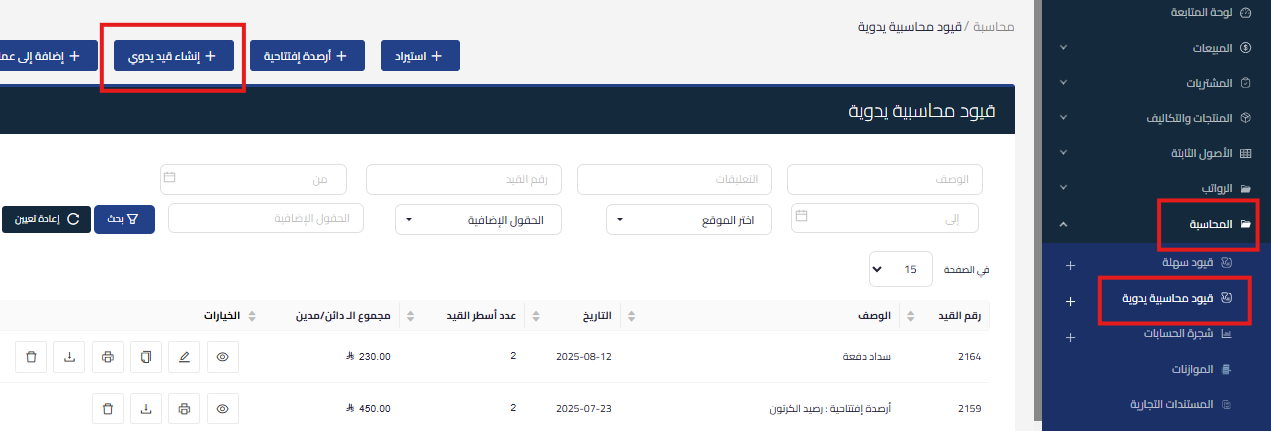
Go to Accounting then Manual Journal Entries
- and click Create Manual Entry from the top options.
-
-
Select Account Type
-
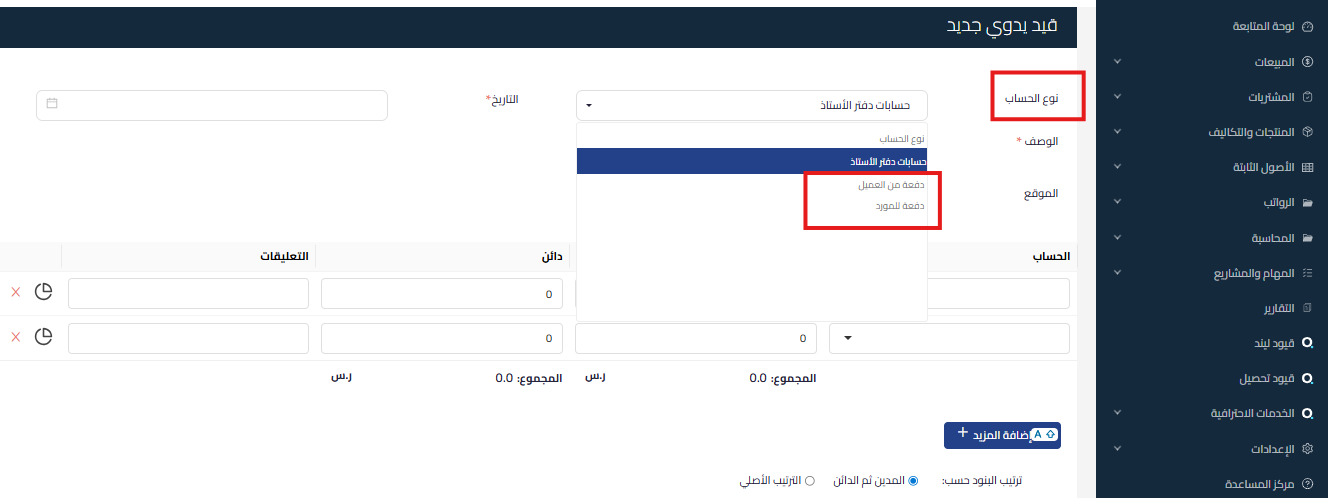
Select Customer Payment or Supplier Payment from the Account Type dropdown menu

-
-
Assign Invoices
-
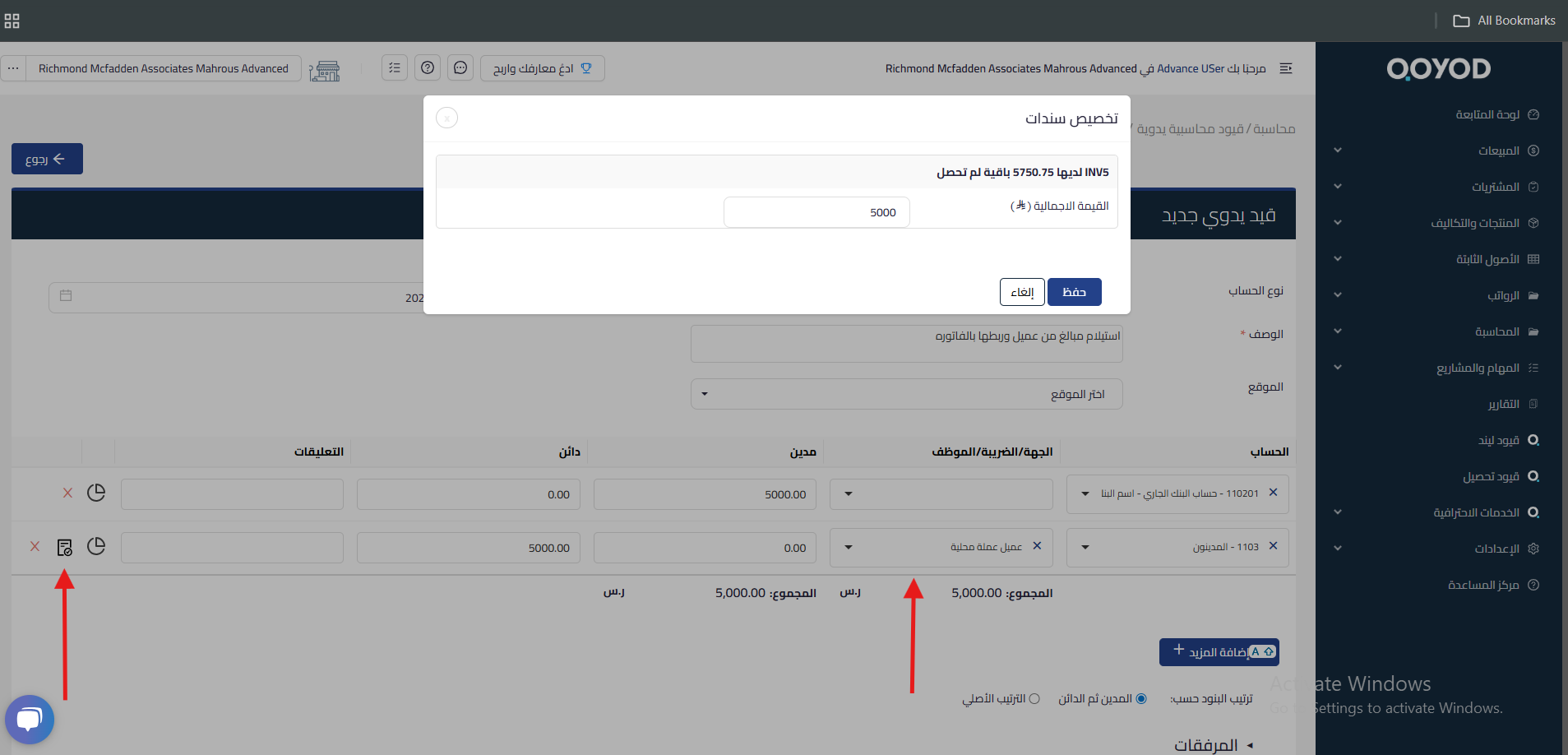
Select the desired account (Receivables or Payables) and choose the entity name
-
Click the invoice icon in the same row and select the outstanding invoices
-
Specify the amount collected or paid for each invoice
-
Save the Entry

-
Important Notes
-
When you assign the manual journal entry to customer or supplier invoices, the invoice status will change to Paid and will affect the dashboard.
- After assigning the journal entry to the invoice, the outstanding amount on the invoice will be reduced. When you click on the invoice, you will find the payment and next to it “Paid via manual entry” appears before the outstanding amount field
-
The dashboard will update the values of pending invoices and top 5 suppliers and top 5 customers based on the changes
-
If the invoice status does not change after assigning the entry, verify that the entry is recorded correctly, the correct account is selected, the correct entity name is chosen, and its position in the entry is either debit or credit.
-
If the update is not reflected in the dashboard or customer and supplier reports
Training Videos:
Here is a practical demonstration video that shows how to link a manual journal entry to customer invoices and assign them to it



