




You can add charges such as shipping, packing and delivery fees to a whole sales invoice, below the line items, each with its own reason, account and VAT rate. This article covers turning charges on, adding them to an invoice and showing them on printed documents.
Path in Qoyod
Settings › General Settings › Sales invoice settings › Enable Total Document Charge
Before you start
- Document-level charges work on sales invoices and credit notes, and each document type has its own switch in General Settings. This article covers sales invoices.
- The option is off until you turn it on.
Turn charges on
- Go to Settings › General Settings and open the Sales invoice settings tab.
 View full size
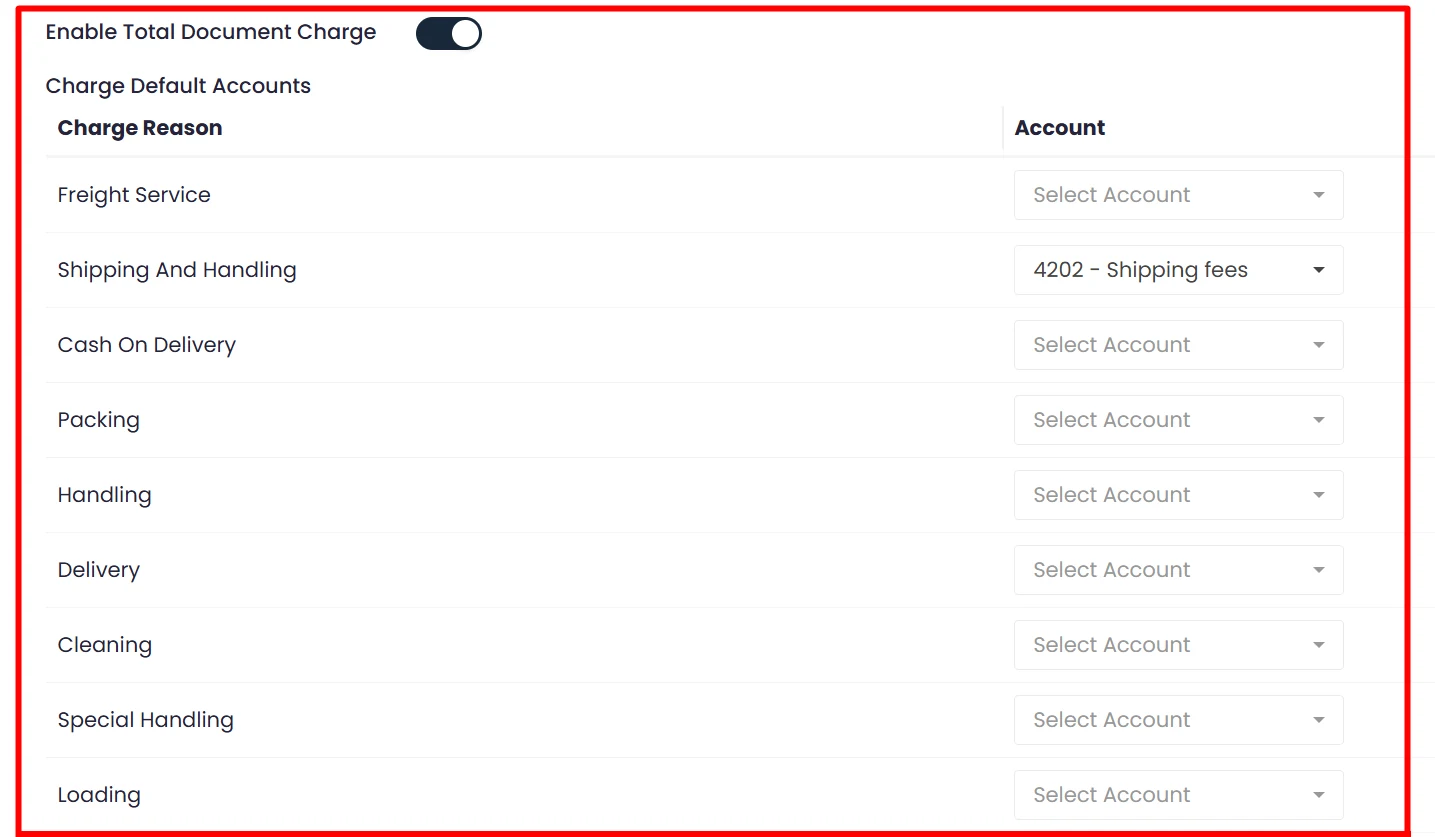
- Under Main Details, turn on Enable Total Document Charge.
- A Charge Default Accounts table appears. For each Charge Reason, pick the default account it posts to, for example Shipping And Handling to your shipping fees account.
 View full size
- Save the settings.
Add charges to a sales invoice
- Go to Sales › Sales Invoices › Create Invoice and add your line items as usual. A Charges section appears below the lines.
 View full size
- Click Add charge, pick the reason from a ready-made list (such as Shipping And Handling, Handling, Packing or Delivery), choose the VAT rate and the account, and enter the amount before VAT.
- Repeat for any other charges. Remove one with the ✕ on its row. The sum shows as Total charges.
 View full size
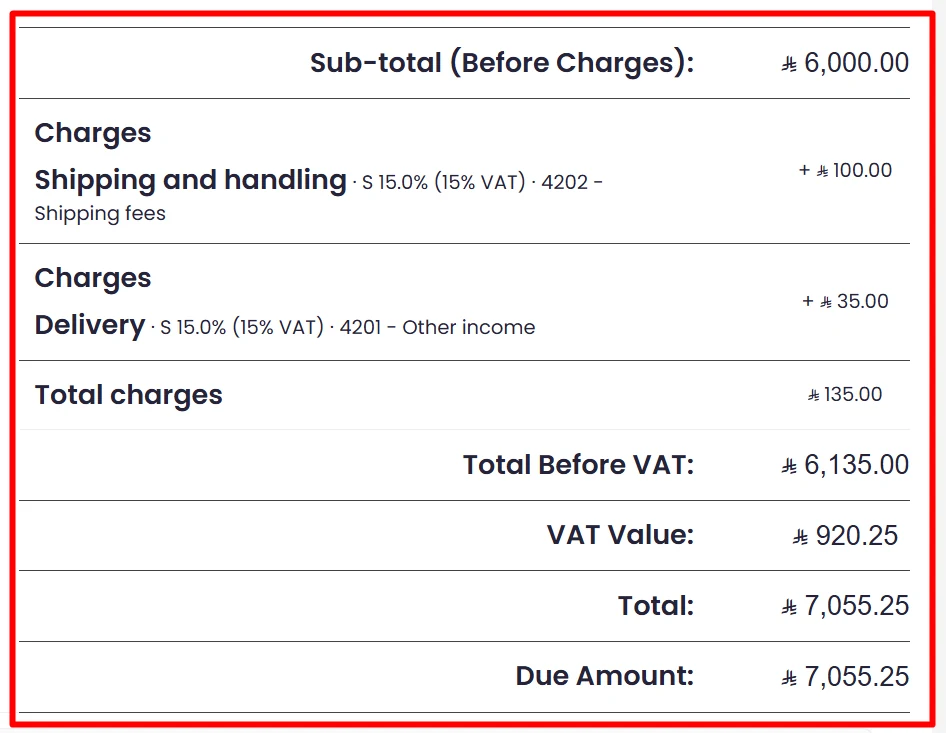
- Complete the invoice and save it. The invoice page lists each charge with its reason, VAT rate, account and amount, then Total charges.
 View full size
Fields
- Charge reason: picked from a ready-made list.
- VAT rate: the VAT rate on this charge.
- Account: where the charge is recorded. Each reason has a default account you set in the settings, and you can pick the account for each charge on the invoice.
- Amount: the charge before VAT.
How VAT works on charges
Each charge is added to the total before VAT. Its VAT is calculated at the rate you chose and included in the document’s VAT total.
Example: a 6,000 SAR line, a 100 SAR Shipping and handling charge and a 35 SAR Delivery charge, all at 15%:
- Total charges: 135 SAR.
- Total before VAT: 6,135 SAR.
- VAT: 920.25 SAR (900 on the line, 15 on shipping and handling, 5.25 on delivery).
- Total: 7,055.25 SAR.
Show charges on printed documents
- Go to Settings › General Settings › Sales invoice settings, scroll to the bottom of the page and open the designer.
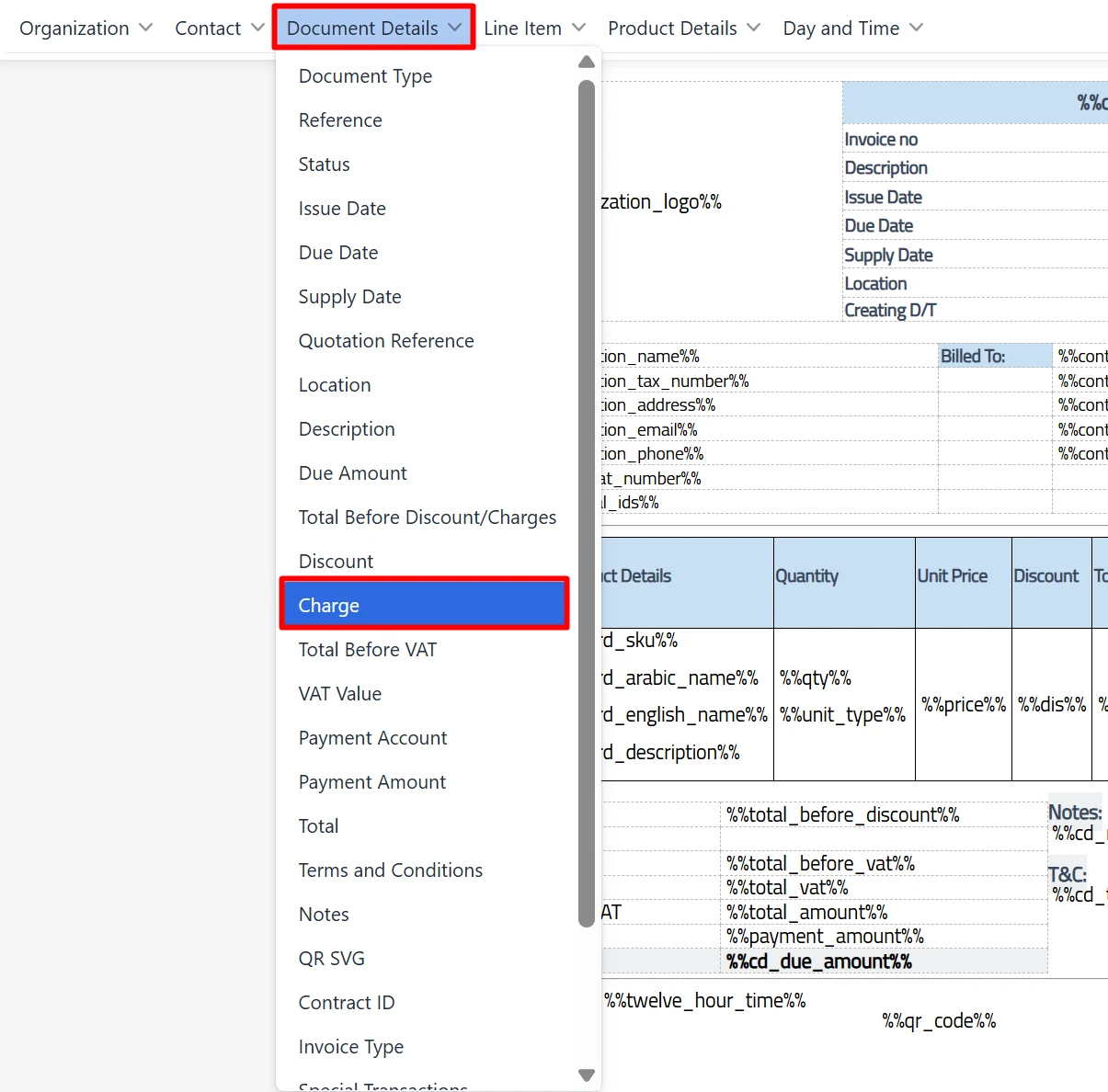
- Place the cursor in the totals table where you want charges to appear, click (…) and choose Document Details › Charge.
 View full size
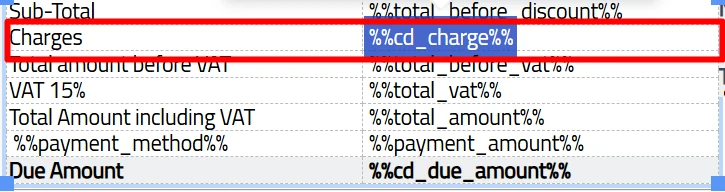
- The %%cd_charge%% variable is added where the cursor is. Save the design.
 View full size
Special cases
Charges don’t appear on the printout
Add Charge to the design from (…) › Document Details, as in the steps above. For more on the designer, see How to Design and Customize Invoices and Business Documents.
“Total before discount” has a new name in the designer
The item in the Document Details menu is now called Total Before Discount/Charges.
Notes
- Charges are never added to invoices automatically. You add them on each invoice with Add charge; the settings only set the default account for each reason.
- Sales invoices and credit notes stay compliant with ZATCA’s e-invoicing requirements. Phase 2 linkage with ZATCA is available on the Professional and Advanced plans.
Frequently asked questions
Are charges added to every invoice automatically?
No. You add them on each invoice with Add charge; the settings only set the default account for each reason.
Do charges affect the invoice’s VAT?
Yes. Each charge’s VAT is calculated at the rate you chose and included in the document’s VAT.
How is this different from adding a fee as a service?
A service is a line in the products table with its own sales account. A document-level charge sits below the lines with its own reason, account and VAT rate, and adds up into Total charges. Both methods are available. See How to Add Additional Fees to Sales Invoices as Separate Services.
Is this the same as the document discount?
No. The discount is subtracted from the document total before VAT, and it is turned on in the same settings. See Pre-Tax Subtotal Discount for Business Documents.
For the full feature details, see the release note on document-level charges.