


You can now invoice part of a quote instead of converting all of it at once. Pick the lines to invoice now and set the quantity for each, and the rest stays open to invoice later, in one invoice or several.
Picking lines and quantities
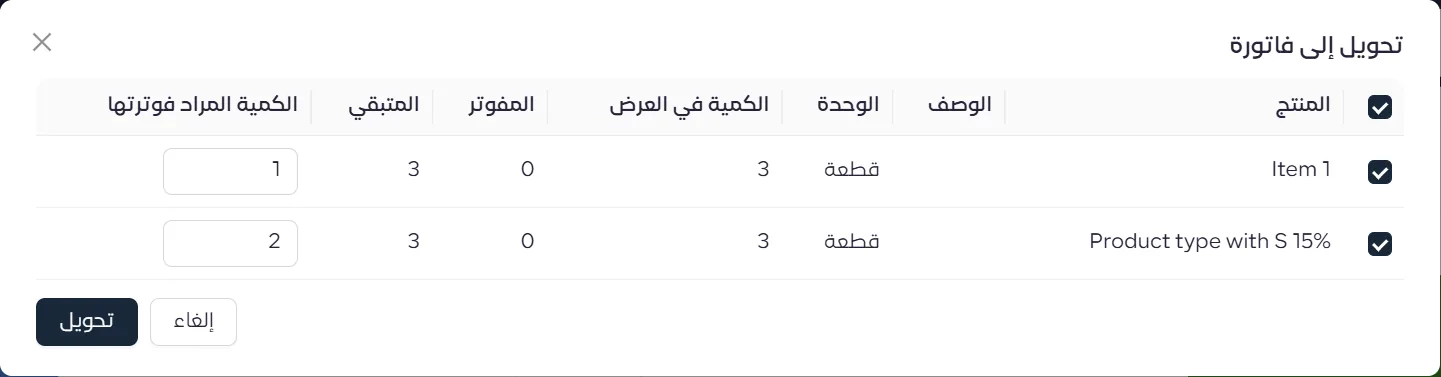
When you click Convert to Invoice, a window lists each line with its quoted quantity, the quantity already invoiced and what remains. Select the lines you want and enter the quantity to invoice for each.
 View full size
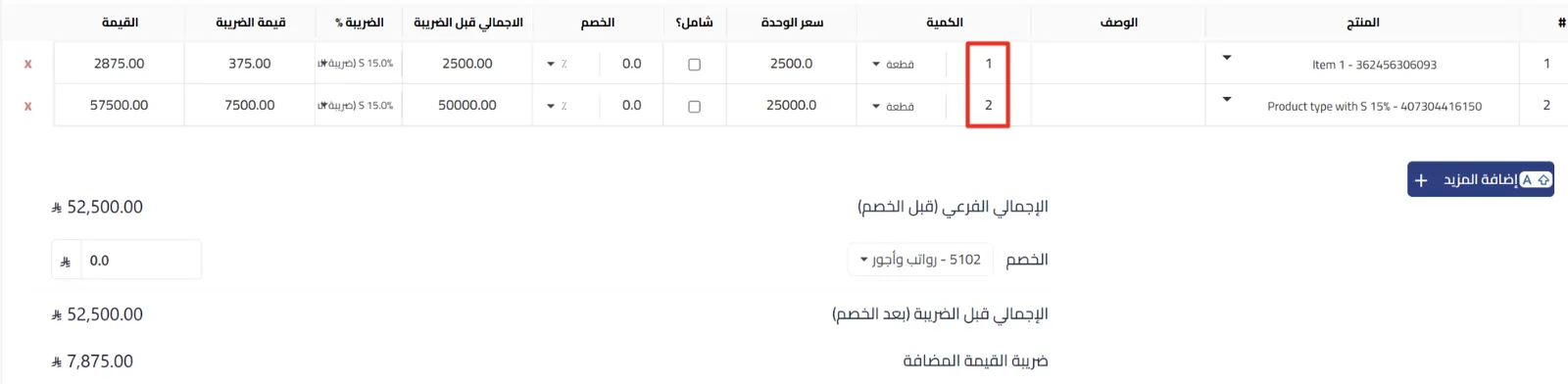
The sales invoice then opens with only the quantities you chose.
 View full size
A more accurate quote status
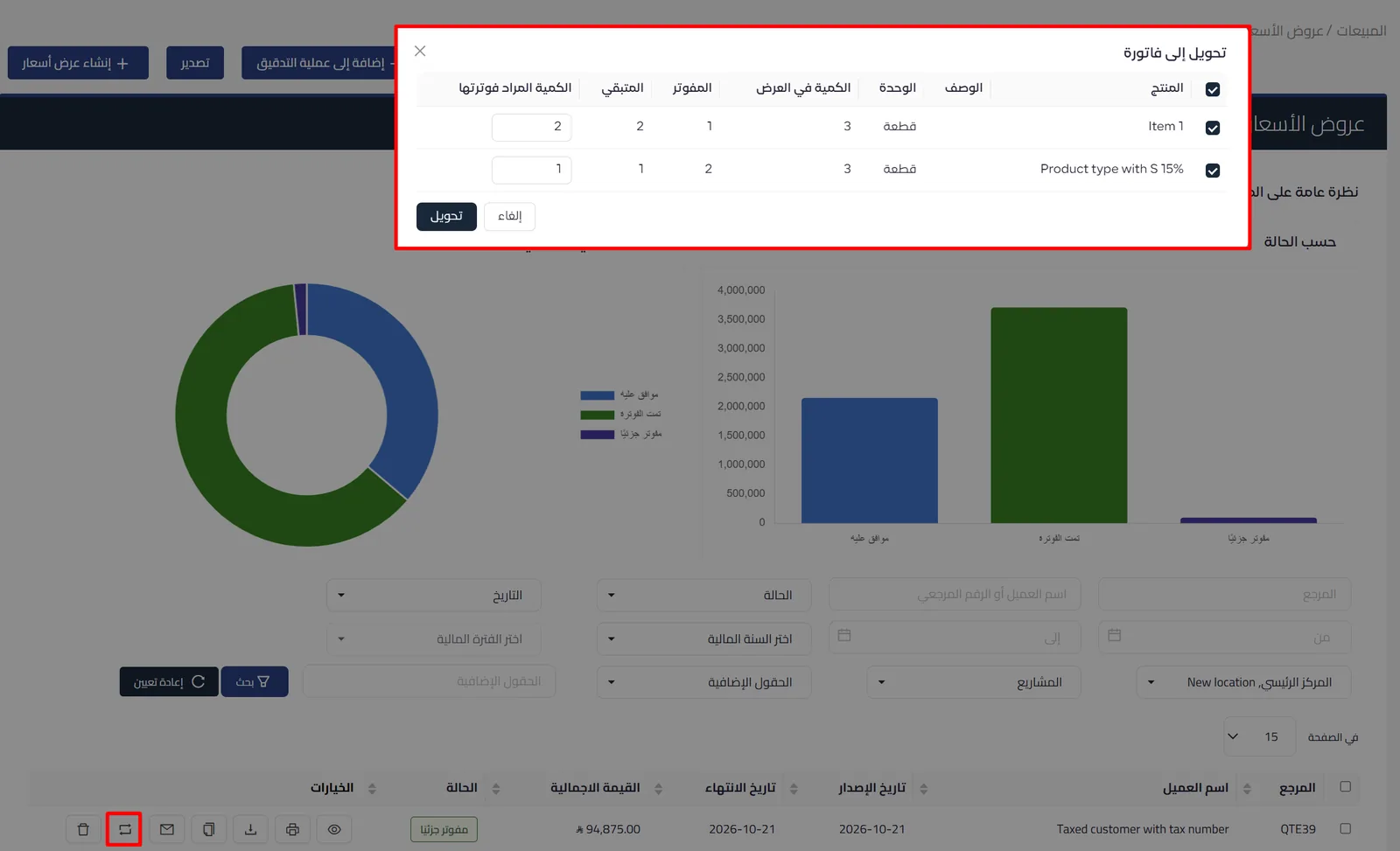
Converting a quote, or saving its invoice as a draft, no longer changes the quote’s status. It stays Approved until the invoice is approved, then updates on its own:
- Partially invoiced: once an approved invoice covers part of the quote. Convert to Invoice stays available for the remaining quantity.
- Invoiced: once approved invoices cover the full quantity.
So if you close the invoice screen without saving, or delete the draft, the quote is ready to convert again, just as it was.
 View full size
Draft invoices
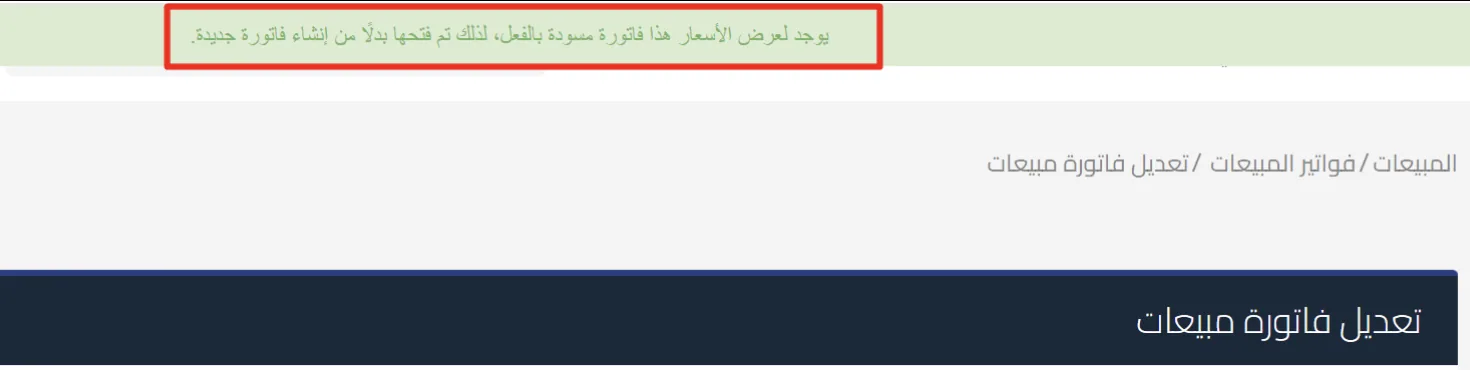
If you already converted the quote and saved the invoice as a draft, Convert to Invoice opens that draft for editing instead of creating a new invoice, with a notice at the top of the screen saying so.
 View full size
Tracking what has been invoiced
The quote page shows the percentage invoiced so far and every invoice linked to the quote. Partially invoiced is also added to the status column and the status filters on the Quotes page.
Alerts when you convert
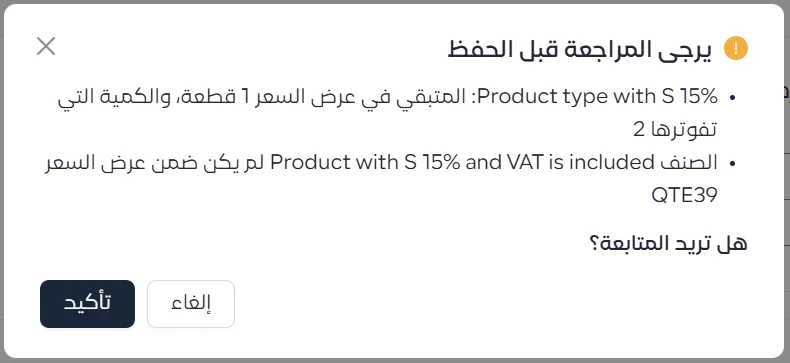
If you enter a quantity above what remains on the quote, or add a line that was not in the original quote, a review prompt asks you to confirm before saving. Once you confirm, you carry on as usual.
 View full size
Who this update is for
Businesses that deliver what a quote covers in batches and invoice each batch as it goes out, while seeing what is still uninvoiced from the quote page itself. Quotes are available on the Professional and Advanced plans.
Read next