




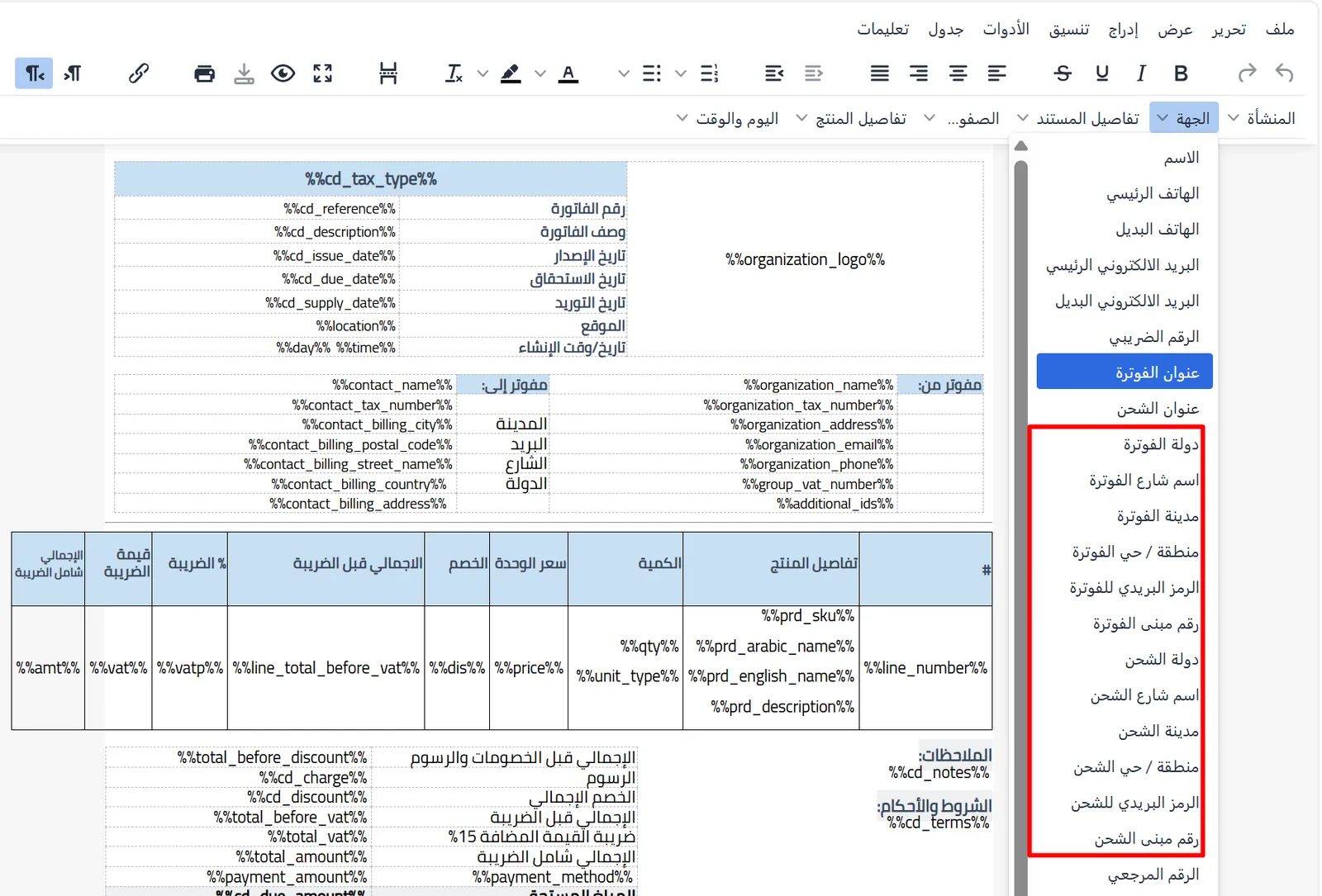
You can now print a customer’s or supplier’s address in parts on business documents. Qoyod’s document designer has 12 new variables in its contact list (الجهة), six for the billing address and six for the shipping address, and you place each one wherever you want in the template.
The new variables
They sit together in the contact list, right after the full shipping address and before the reference number. Billing and shipping each get six parts:
- Country
- Street name
- City
- Region / district (one variable)
- Postal code
- Building number
 View full size
The full billing address and shipping address variables stay as they are. Print the whole address in one place, use the parts on their own, or combine both in the same template.
Which documents
- Sales: invoices, credit notes, debit notes and quotes, including their simplified versions. Values come from the billing and shipping address on the customer record.
- Purchases: purchase invoices and their simplified versions, debit notes and purchase orders. Values come from the supplier’s address.
Receipt and payment vouchers are not included.
How the values print
- An empty field prints empty, with no separator and no placeholder text.
- Country prints in the document language you choose in the designer.
The address on issued documents
- If e-invoicing is activated for your organization, the billing address parts are saved with the invoice when it is approved and print as they were at approval. Credit and debit notes take the address from their invoice.
- On documents issued before this update, the billing parts print from the customer’s current details only if they match the address saved with the document. If the customer’s address changed after the document was issued, the parts print empty, so the document never shows an address it was not issued with.
- Shipping address parts, and billing address parts where e-invoicing is not activated, follow the customer’s current details, the same way the full address variables do today.
How to add them
- Go to Settings, then General Settings, and open the settings tab of the document whose template you want to edit.
- At the bottom of the page, click Try the New Designer (تجربة المصمم الجديد), or Open Designer (فتح المصمم) if you already use the new designer.
- Place your cursor where the address part should appear.
- Click the (…) button in the toolbar and pick the variable from the contact list (الجهة).
The same variables are also in the header and footer editor of the default designer.
The user needs access to General Settings. It is granted under Settings, then Users, then role management (إدارة المناصب), where you edit the user’s role (تعديل المنصب). For more on working in the designer, see How to Design and Customize Invoices and Business Documents.
Your existing designs
Saved designs and the ready-made templates keep working with no action from you. Nothing is added to a design automatically: the new variables appear only where you insert them.
Who this update is for
Businesses that want to lay out a customer’s or supplier’s address their own way, for example city and postal code on one line, street name and building number on another, while keeping the option to print the full address in one place. The document designer is available on all plans.
Read next