


A cashier session in Qoyod POS works out what should be in the drawer, compares it with what the cashier counted, and keeps the difference visible to whoever reviews it. A session opens with the cash in the drawer, records every cash in and cash out during the shift, and ends with a count, a difference and a numbered close report.
Open a session before selling
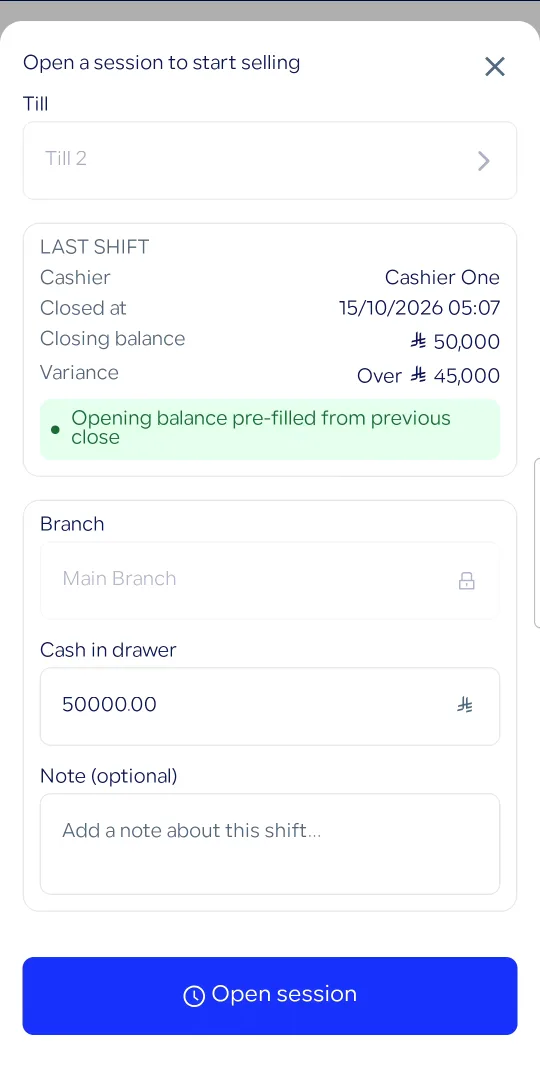
When a branch requires a session to sell, the cashier who taps Pay sees “Open a session to start selling” and the cart stays as it was. The cashier picks the till if the branch has more than one, types the cash in the drawer, and opens the session. If a session is already open on that till, a second cashier joins it with “Use this session” instead of opening another, so each drawer is counted once.
 View full size
Record cash in and cash out
Record any amount that goes into or out of the drawer during the shift as cash in or cash out, with a reason. The session summary shows sales, refunds, collections by payment method and cash movements, so a manager can check a till without closing it.
Count the drawer before the expected amount appears
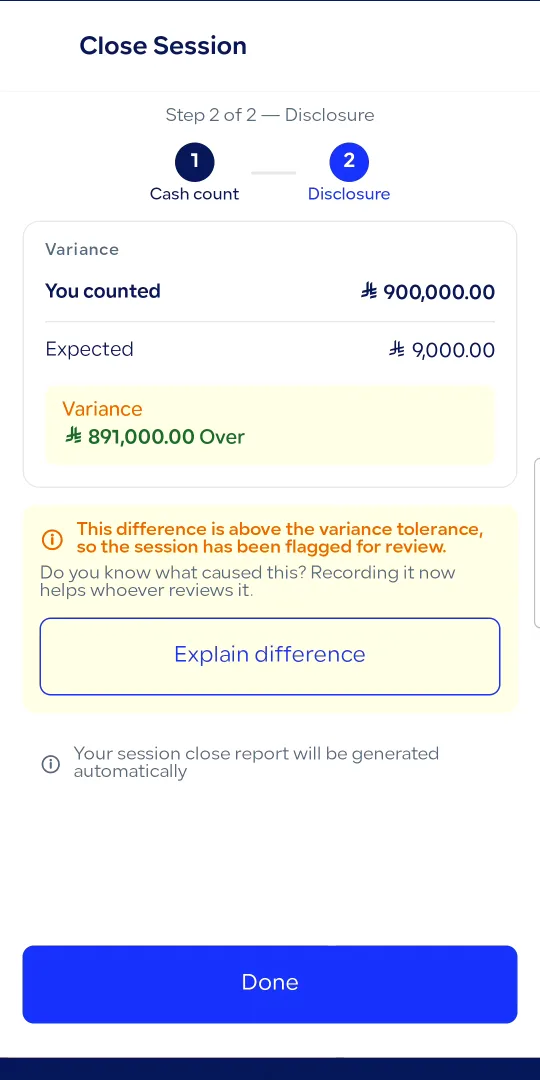
At close, the session is closed to sales and the till is free for the next shift. The cashier then sees the count screen, which holds only the amount field and does not show the expected amount. After submitting, the result shows what you counted, the expected cash, and whether the drawer is balanced, over or short.
Expected cash is the opening amount plus cash payments received, minus cash refunds, plus cash in and minus cash out. Cards never count, because only payment methods you mark as drawer cash are included.
A difference stays on record until someone explains it
If the difference is above the limit you set for the branch, the session is flagged for review and the cashier is offered “Explain difference”. Recording the reason once clears the review flag. When the cash cannot be counted, the session closes with “Close without counting” and a reason, and is recorded as not counted, with no difference invented.
If the count was entered wrongly, anyone with the permission can reopen the session and count again. The earlier report stays on record, marked as replaced.
 View full size
A numbered close report for every session
Every close produces a Session Close Report with a number, the figures, the cash movements and each cashier’s totals. Reprints are marked as reprints, and replaced reports say so. Web POS prints the report on an 80mm roll or A4, following your report template setting; the Android POS App can download and share it as a PDF.
The Sessions list: what needs a look first
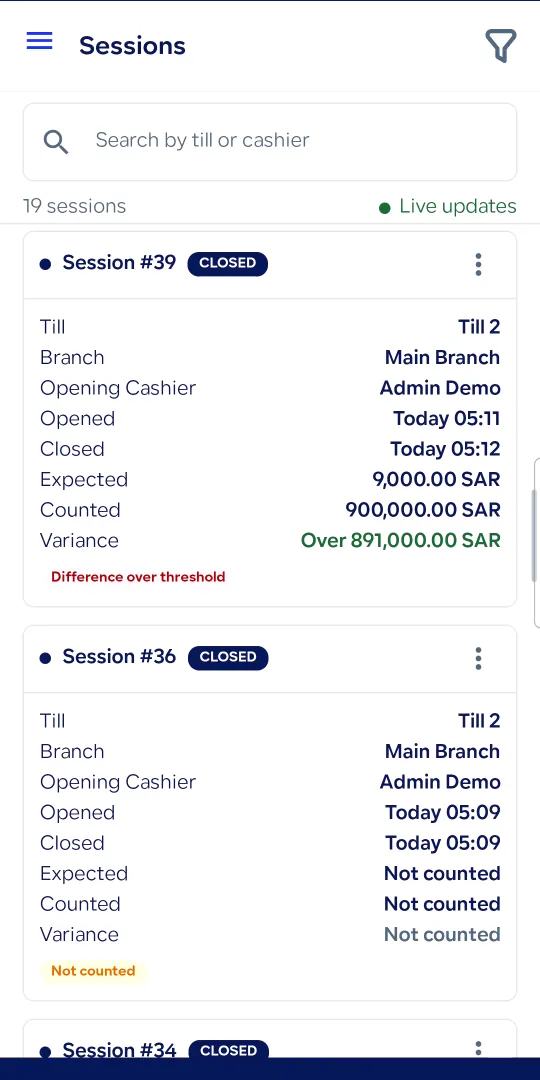
Sessions lists every session at the branch. On Web POS, the list puts what needs review first under «يحتاج إجراء الآن»: a difference above the limit, a session not counted, or one that was reopened. Each session shows its difference, its flags and its close history, and any past report can be reprinted. Filter by state, till, cashier and dates.
 View full size
Set sessions up per branch
Under Settings, then Session Management, choose for each branch whether a session is required to sell, whether cash is tracked in the drawer, a daily time to close sessions to sales, a self-reopen window, an expected session length, the difference above which a session is flagged, and the amounts above which opening and counted cash need confirming. The daily close, self-reopen window, expected length, difference limit and confirmation rules ship switched off until you turn them on. If a branch requires a session to sell, cashiers will meet the open-session screen at payment after the update. You can also name each drawer in the branch as a till, so every till has its own session.
Branches that do not count cash
On Web POS, a branch can require sessions without tracking cash: a session opens with no amount, there is no cash in or out, and it closes in one step with no count. The close report says cash was not tracked. This suits card-only shops that still want to know who sold on which till.
Permissions
Sessions are controlled by seven permissions, which you set under Settings, then User Management, then Manage Roles (إدارة المناصب), then Edit Role (تعديل المنصب): open a session, close a session, close another user’s session, reopen a session, record cash movement, view sessions, and manage session settings. Cashiers count the drawer and managers review the differences. Sessions from the earlier version stay readable and are marked “Earlier version”.
Availability
Available on Web POS and the Android POS App, included in every Qoyod POS subscription at no extra cost. Sessions without cash tracking are available on Web POS only.
Who this update is for
Owners who cannot watch every shift, branch managers who count the drawer, and accountants who need a numbered report for each session. It fits shops with one till or several tills across branches.
Read next